

Most work order templates are just a blank form. That’s fine until the same rooftop unit breaks twice in a month and nobody notices, or a “high priority” job is still open a week later. A work order earns its keep across the whole life of a job, so this post follows one ticket from start to finish instead of listing fields.
The ticket is WO-2611 at Northgate Business Park (illustrative): a rooftop air-conditioning unit short cycling above a tenant’s office. At each stage you’ll see what gets written down, which column in the free Excel work order log it lands in, and what the printable Word work order form looks like when it’s closed.
Stage 1: The request (Mon 19 Oct, 2:10 pm)
A. Patel, office manager in Suite 210, calls the front desk: “Suite is 79°F by 2 pm again. Unit clicks on and off every few minutes. Same as two weeks ago.”
The coordinator adds a row to the log and fills in five fields: WO number, date requested, requested by, location/asset and problem. Two habits matter here. First, record the problem in the requester’s own words, with the symptom and the time. “AC broken” tells a technician nothing, while “79°F at 2 pm, clicking on and off” points straight at a cycling fault. Second, name the asset (RTU-3), not only the room. Asset names are what let you spot repeat failures later.
Stage 2: Triage and due date (2:15 pm)
The coordinator sets the priority to High because it affects a tenant, and the log works out the due date by itself:
=C21 + INDEX(Lists!$C$5:$C$8, MATCH(G21, Lists!$B$5:$B$8, 0))
The Lists tab holds the service levels: Emergency same day, High 2 days, Normal 7 days and Low 21 days. WO-2611 is due Wednesday 21 October. Change a service level once and every open order’s due date updates. If you agree response times with tenants or internal customers, this table is where they live.
Stage 3: Assignment (2:40 pm)
D. Okafor, the HVAC technician, is picked from the Assigned dropdown and the status changes to Assigned. The technician’s hourly rate ($68) sits on the Lists tab too, so labor cost is calculated later without anyone typing a rate. Jobs sent to an outside contractor are assigned to “Vendor” with a $0 rate, and the contractor’s invoice goes in Parts $. That’s how the roof hatch leak (WO-2603, $640) was handled.
Stage 4: Diagnosis and the parts wait (Tue 20 Oct)
Okafor is on the roof at 7:30 am. The contactor’s contacts are pitted, the run capacitor reads 31 µF against a 45 µF rating, and the filters are loaded. Neither part is in stock, so the status changes to On hold – parts and the suite gets a portable fan.
This is the stage most paper systems lose track of. A job waiting on parts isn’t finished, but nobody is actively working on it either. In the log it stays in the Open count in the header, and the SLA column keeps watching the due date. If the parts had arrived late, WO-2611 would have turned red and shown Overdue the morning after it was due:
=IF(K21<>"", IF(K21<=J21,"On time","Late"), IF(Lists!$C$20>J21,"Overdue","Open"))
On the sample’s as-of date of 23 October, two orders are showing red: the elevator door (WO-2609, a vendor job due 18 October) and the parking gate arm logged the day before as an emergency.
Stage 5: The fix (Wed 21 Oct, 11:15 am)
The parts arrive and Okafor replaces the contactor and capacitor and changes the filters. He runs the unit for 45 minutes and sees 55°F supply air with no short cycling. In the log he enters the completion date, 3.5 labor hours and $186.40 in parts. Labor $ comes out at $238.00 (3.5 × $68), and the total is $424.40. Days open shows 2 and the SLA column shows On time.
On the Word form, the same job reads as a timeline. Each status change has its time and one line of detail, followed by the itemized parts and labor. That timeline is what you hand a tenant who asks “what took so long?”
Stage 6: Close-out (4:00 pm)
Patel confirms the suite is at 72°F at 3 pm and signs the form, and the status changes from Completed to Closed. The template keeps those two statuses separate on purpose. “Completed” means the technician thinks it’s fixed. “Closed” means the person who asked agrees. WO-2610, the lobby door closer, is completed but not yet closed, so it’s still waiting for the tenant to check it.
Stage 7: The review nobody does (Friday)
This is where the log beats a pile of forms. The Summary tab shows that Suite 210 has raised two orders this month, and both were for RTU-3. WO-2601 on 6 October was “too warm in afternoons” and was closed after a thermostat schedule reset. The fault came back ten days later. So the cause line on WO-2611 is blunt: root cause not found on the first visit. The follow-up adds RTU-3 to the monthly preventive maintenance list and checks the capacitors on the other rooftop units in November.
Suite 104’s door closer shows the same pattern (WO-2598, then WO-2610). Two repeat jobs out of 16 is the most useful figure in the workbook, and you’ll only see it if every order goes in the same log. To report on this monthly, the totals feed straight into a maintenance report, and on-time % makes a good line on a facilities KPI report.
The Excel work order log
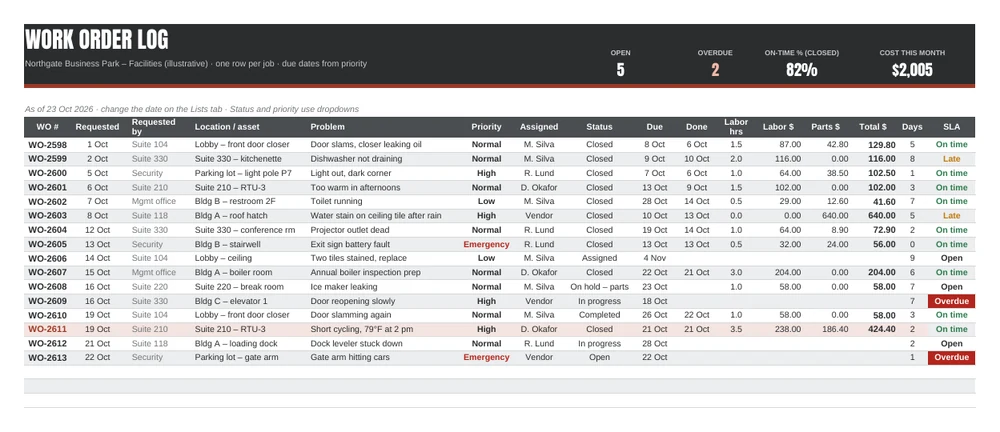
Three tabs. Work Orders has 200 rows, with dropdowns for priority, technician and status, and formulas for the due date, labor $, total $, days open and SLA. The header shows open orders (5), overdue (2), on-time % for closed orders (82%) and cost this month ($2,005). Summary breaks orders down by priority, with open, on-time, late and average days, and by requester, with order count and cost. Lists holds the service levels, technicians and rates, the status options and the as-of date. Set the as-of date to today, or replace it with =TODAY() if you want it to update automatically.
The Word work order form
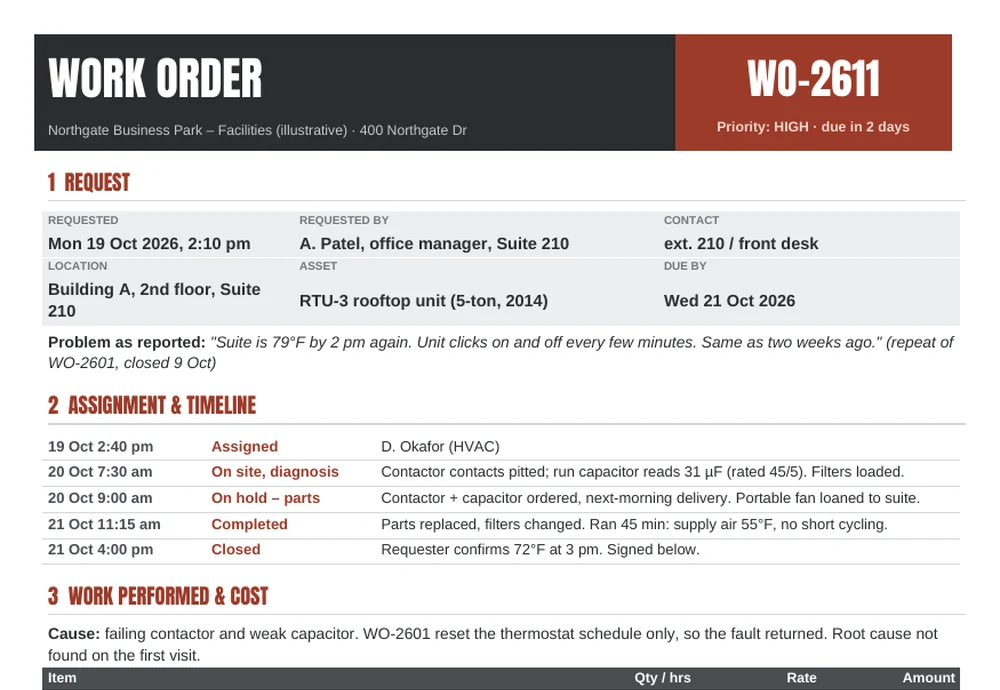
One page in four numbered blocks: request, assignment and timeline, work performed and cost, and sign-off. It’s set up for a technician to carry on a clipboard or fill in on a tablet. The “Problem as reported” line is in italics so nobody tidies up the requester’s words, and “Cause” sits directly above the cost table, so you can’t price a job without saying what was wrong. For jobs done at a customer’s site rather than your own building, our service report template adds customer details and a service summary.
Adapting it
- Mechanic or repair shop: rename Location / asset to Vehicle (make, model, plate) and add a column for mileage in.
- Property management: keep Requested by as the unit number. The Summary’s requester table then shows which units generate the most calls.
- Before and after inspections: if a job starts with a formal check, attach an inspection report and put its reference in the Problem field.
Northgate Business Park, its tenants, technicians, equipment and costs are illustrative.

