

Most freelancers and small businesses don’t need accounting software to keep track of who owes them money. They need an invoice tracker template that answers three questions every Monday: how much is outstanding, which invoices are late, and who to chase first. A spreadsheet handles that well, but only if the formulas are right. Get one wrong and the sheet will tell you an invoice is still “Open” two months after it was due.
So rather than just handing over a file, this page goes through the five formulas that do the work, one at a time, using a finished tracker for Juniper Hale Copywriting, an illustrative one-person agency with 14 invoices from July to October 2026. You can follow along and build your own, or download the finished Excel tracker and the Word status report further down.
The layout, in one line
One row per invoice: invoice number, client, issue date, terms (days), due date, amount, paid, balance, paid on, status, days overdue, days to pay. You type six of those columns. The other six are formulas. There’s also a single As of date at the top, in cell L2, which every calculation uses as “today”.
Why not use TODAY() everywhere? Because a fixed date lets you see what the tracker looked like on the 1st of the month, or check a client’s account as it stood on a particular day. If you’d rather it updated by itself, type =TODAY() into L2 and every formula will follow.
Formula 1: the due date
=IF(D10="","",D10+E10)
Issue date plus terms. In Excel, dates are stored as day numbers, so adding 30 to 15 July gives 14 August. The IF wrapper keeps empty rows empty, which keeps the sheet readable when you have 40 rows set up and 14 used.
Putting terms in their own column matters more than it looks. Juniper has three kinds of client: most pay on 30 days, Saltmarsh Brewing pays on 14 days, and Northgate Physio negotiated 45. If you type due dates by hand, you’ll eventually work one out from the wrong terms. With a terms column, the due date is always issue date plus terms.
Formula 2: the balance
=IF(G10="","",G10-N(H10))
Amount minus paid. The N() around the paid cell turns a blank into zero. Without it, an unpaid invoice with an empty Paid cell would still work in Excel, but a stray space typed into that cell would break it. Partial payments are handled automatically. Northgate paid $1,600 of a $3,200 invoice on 30 September, so the balance shows $1,600.
Formula 3: the status
=IF(G10="","",IF(I10<=0,"Paid",IF($L$2>F10,"Overdue",IF(N(H10)>0,"Part-paid","Open"))))
This is the formula the rest of the tracker relies on, and the order of the tests is deliberate:
- Paid first. If the balance is zero or less, nothing else matters. (Less than zero means an overpayment, which should show up as paid, not overdue.)
- Overdue second. Any unpaid balance past the due date is overdue, even if part of it has been paid. That’s why Northgate’s half-paid invoice shows Overdue and not Part-paid: the remaining $1,600 was due on 9 October.
- Part-paid third, for invoices that are partly paid but not yet due.
- Open for everything else.
Conditional formatting colours each status: a red fill for Overdue, gold for Part-paid, green text for Paid. On 23 October, four of Juniper’s 14 invoices are red. You can see that before reading a single number.
Formula 4: days overdue and days to pay
=IF(K10="Overdue",$L$2-F10,"") and =IF(AND(J10<>"",I10<=0),J10-D10,"")
Days overdue counts from the due date to the As of date, and only for overdue rows. Anything over 30 days turns red. Saltmarsh’s $720 invoice is at 31 days, the oldest debt in the file.
Days to pay is the more useful of the two over time. It counts from issue date to payment date for invoices that are fully paid, which tells you how each client actually behaves rather than what their terms say. Cedar Point Vet Clinic is on 30-day terms but has averaged 39 days. That’s worth knowing before you agree to a bigger project with them.
Formula 5: who owes what
=SUMIFS(I10:I49, C10:C49, "Northgate Physio", K10:K49, "Overdue")
SUMIFS adds up the balance column for rows that meet every condition you give it. On the By Client tab, one version totals what each client has been billed, another what they’ve paid, and a third (above) what they owe that’s overdue. A data bar on the Outstanding column shows who owes the most at a glance. For Juniper, Ashby & Rowe Law is at $5,950 across two invoices, but only $4,100 of that is overdue, and that’s just one day late.
The five summary cards across the top of the tracker use the same functions: SUM for total outstanding, SUMIFS for the overdue total, COUNTIF for the number of overdue invoices, AVERAGE for days to pay, and MAXIFS with INDEX/MATCH to name the client with the oldest overdue invoice. One note on MAXIFS: it needs Excel 2019 or Microsoft 365 (or Google Sheets or LibreOffice). In Excel 2016 that one card shows #NAME?, but everything else works.
Three tweaks people ask for
- End-of-month terms (“net 30 EOM”): change the due date formula to
=EOMONTH(D10,0)+E10. An invoice issued on 12 September is then due on 30 October, not 12 October. - Due dates that skip weekends:
=WORKDAY(D10+E10-1,1)moves a Saturday or Sunday due date to the following Monday. - A late fee column, if your contract includes one:
=IF(N(L10)>30,ROUND(I10*1.5%*INT(L10/30),2),0)adds 1.5% of the balance for each full 30 days overdue. Check what your local rules allow before you charge it.
Check one invoice: due date, days overdue, late fee
Same logic as the tracker’s formulas, for a single invoice. Handy when a client asks what they owe today. The late fee is optional; only charge one if your terms allow it.
Due date = issue date + terms. Balance = amount − paid. Late fee = balance × monthly % × (days overdue ÷ 30, or the number of started 30-day periods). Late fees must be in your agreed terms and within local legal limits.
The finished Excel invoice tracker
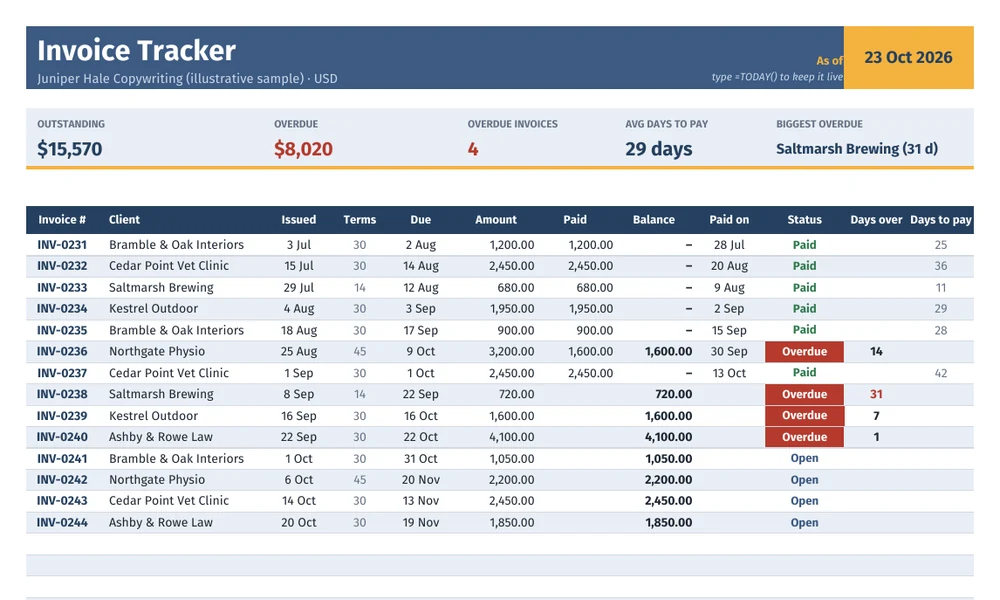
The download has all of the above built in, with 40 formatted rows (copy the last one down for more) and the sample data in place so you can see how it behaves before clearing it. The Terms column only accepts whole numbers from 0 to 120, so nobody can type “Net 30” and break the due date. Freeze panes keep the invoice number and client visible as you scroll right.
The Word invoice status report
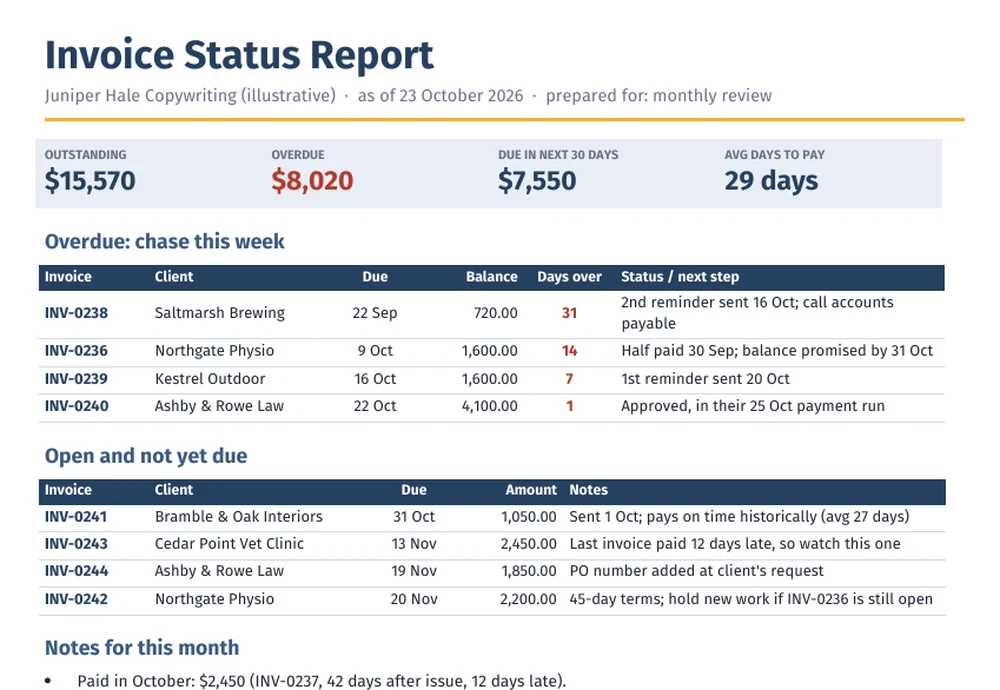
The spreadsheet is your working file. The Word report is the one-page summary you write once a month, for yourself, a business partner or your bookkeeper. It includes the overdue list with a next step for each invoice, the open invoices that are coming due, and three or four lines of notes. The notes are where the decisions go: whether to add a late fee (only if your terms allow it), and which client should move to shorter terms.
A ten-minute Monday routine
- Enter any payments received since last week in the Paid and Paid on columns.
- Change the As of date, or leave
=TODAY()in it. - Sort or filter by Status and work down the red rows, oldest first.
- Send reminders on the day an invoice goes overdue, not a week later. Saltmarsh only got to 31 days because the first reminder went out late.
- Add new invoices as you send them, not at the end of the month.
When a tracker isn’t enough
A tracker is a list. Once you have more than about 30 open invoices, or the balance covers several months, group what’s owed by age (0–30, 31–60, 61–90 and 90+ days). That’s what an accounts receivable aging report does, and it’s the version a lender or accountant will ask for. Money that comes in should agree with your bank account, which is what a monthly bank reconciliation is for. And if late payers are causing gaps in your cash, a cash flow statement shows how big those gaps actually are.
Juniper Hale Copywriting, its clients and all amounts are illustrative.

