

An accounts receivable aging report template gives you a fast, repeatable way to see who owes your business money, how much they owe, and how long each invoice has been sitting unpaid. Instead of scrolling through an invoice list and guessing which balances need attention, an aging report sorts every open amount into time buckets (Current, 1–30, 31–60, 61–90 and 90+ days past due) so the oldest and riskiest receivables stand out immediately.
Below you can download two free, fully editable templates. The first is an Excel accounts receivable aging report that ages each invoice automatically against an “As of” date you choose and rolls the results into a customer summary with SUMIFS formulas, percentages and a chart. The second is a Word AR aging summary report you can hand to a manager, controller or client: it presents the bucket totals, the top overdue customers, a collection action plan and a sign-off block on a clean, printable page.
What Is an Accounts Receivable Aging Report?
An accounts receivable (AR) aging report is a list of unpaid customer invoices grouped by how long they have been outstanding. Each open balance is compared with a reporting date, usually the last day of the month, and placed into one aging bucket. Most businesses age invoices from the due date, so a Net 30 invoice issued on August 1 is “current” until August 31 and starts counting days past due after that.
The report normally has two levels. The detail level shows every invoice with its customer, invoice number, dates, original amount, payments received and remaining balance. The summary level adds those balances up by customer and by bucket, so you can see at a glance that, for example, 27% of your receivables are more than 90 days late and most of that sits with two customers.
The aging report is also a control tool: the total of all buckets should equal the accounts receivable balance on your balance sheet. If it does not, look for an unposted payment, a missing credit note or a duplicate invoice.
Why Track AR Aging?
Revenue does not pay the bills until customers actually pay. Tracking aging closes the gap between sales and cash and warns you early when collections slip.
- Protect cash flow. Overdue invoices are cash you have already earned but cannot use. Seeing them by age helps you forecast when money will really arrive.
- Prioritize collection effort. The older an invoice gets, the less likely it is to be paid in full. The report tells your team which accounts to call first.
- Spot risky customers early. A customer drifting from 1–30 into 31–60 month after month is a warning sign before you extend more credit.
- Support credit decisions. Credit limits, deposits and payment terms are easier to justify when you can point to a customer’s actual payment history.
- Estimate bad debt. Many businesses set their allowance for doubtful accounts by applying a higher loss percentage to each older bucket.
- Satisfy lenders and auditors. Banks offering a line of credit and auditors testing receivables often ask for an aged receivables listing as of a specific date.
Free Accounts Receivable Aging Report Templates (Editable)
Both templates use the same sample company and the same September 30, 2026 figures, so you can see how the detailed spreadsheet and the written summary fit together.
1. Accounts Receivable Aging Report (Excel)
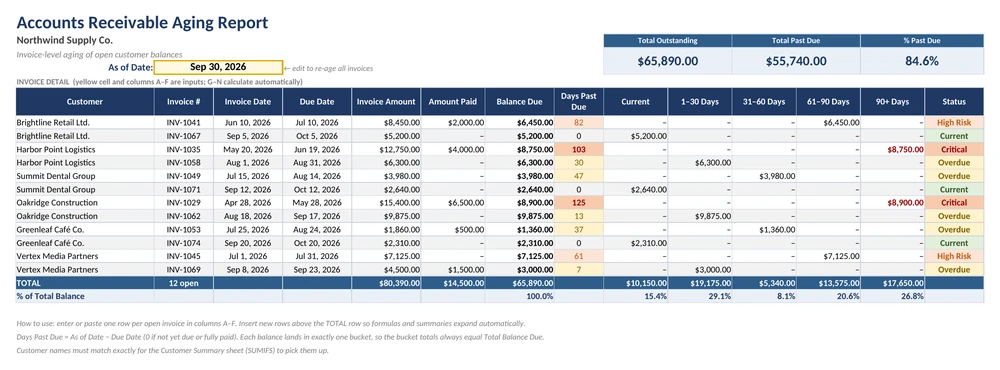
This workbook is the working tool. On the AR Aging sheet you enter one row per open invoice: customer, invoice number, invoice date, due date, invoice amount and amount paid. The balance due, days past due, all five aging buckets and a status label (Current, Overdue, High Risk or Critical) calculate on their own. Change the yellow “As of Date” cell and every invoice re-ages instantly, which makes month-end reporting a two-minute job.
The Customer Summary sheet uses SUMIFS and COUNTIFS to total each customer’s balance by bucket, show their share of total receivables and flag their oldest past-due invoice. A bucket summary with a column chart and a built-in check confirms that the bucket totals match the detail sheet. Conditional formatting highlights invoices more than 60 and 90 days late, and summary cards at the top show total outstanding, total past due and the percentage past due.
Best for: bookkeepers, small business owners and AR teams who track receivables in a spreadsheet and need a monthly aging schedule with customer totals.
2. AR Aging Summary Report (Word)
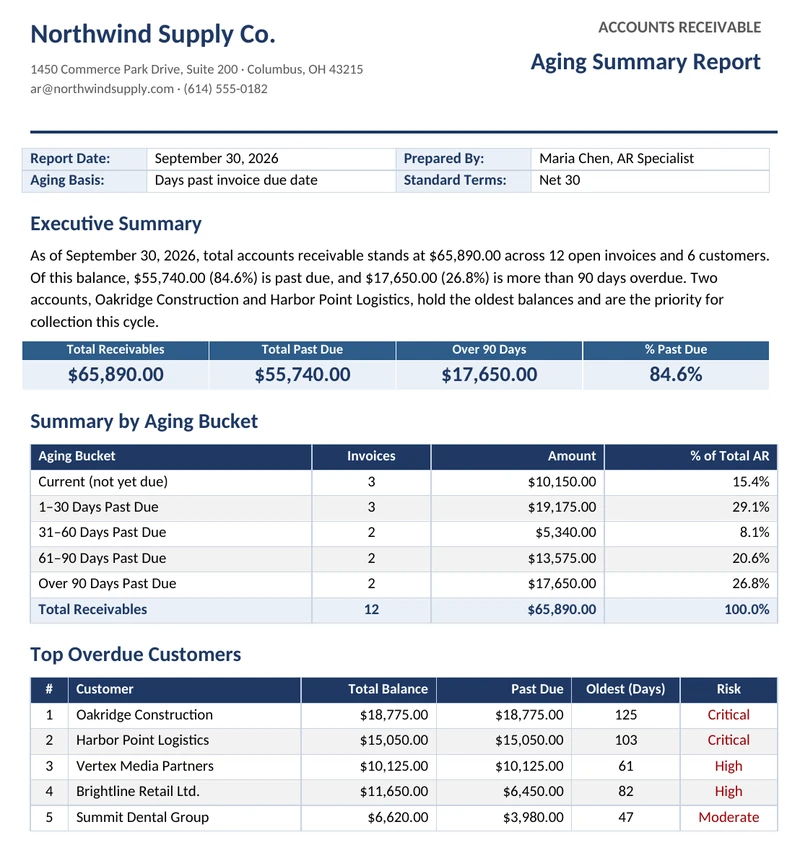
This document is the reporting layer. It opens with a company header, report date, preparer and payment terms, then gives a short executive summary and four headline figures: total receivables, total past due, the amount over 90 days and the percentage past due. A summary table breaks the balance into the five aging buckets with invoice counts and percentages.
The second half focuses on action. A top overdue customers table ranks accounts by past-due balance with their oldest invoice age and a risk rating, followed by a collection action plan that lists the next step, owner and follow-up date for each account. A notes section explains what changed since last month, and a sign-off table records who prepared, reviewed and approved the report.
Best for: controllers, finance managers and accountants who need to present month-end receivables and collection plans to owners, management or clients.
What to Include
Whatever tool you use, a useful AR aging report contains the following fields. The first group comes from your invoices; the second group is calculated.
| Section | What It Shows | Why It Matters |
|---|---|---|
| Report header | Company name, report title and the As of date | Makes clear which date every invoice is aged against |
| Customer | The name of the account that owes the balance | Lets you total and follow up by customer |
| Invoice number | The unique reference for each invoice | Needed when you call the customer or match a payment |
| Invoice date and due date | When the invoice was issued and when payment was due | The due date drives days past due and the bucket |
| Invoice amount and amount paid | Original value and any partial payments or credits | Shows the true open balance, not the gross sale |
| Balance due | Invoice amount minus amount paid | The figure that is aged and totaled |
| Days past due | As of date minus due date, never below zero | Determines which bucket the balance falls into |
| Aging buckets | Current, 1–30, 31–60, 61–90 and 90+ days | Shows how old your receivables are at a glance |
| Totals and percent of total | Sum of each bucket and its share of total AR | Reveals trends and ties back to the balance sheet |
| Customer summary | Each customer’s balance by bucket | Identifies which accounts to prioritize |
| Notes and actions | Disputes, promises to pay, next steps | Turns the report into a collection plan |
How to Create an AR Aging Report (Step by Step)
- Pick the As of date. Most businesses use the last day of the month so the report lines up with the balance sheet. Enter it in the As of Date cell.
- Export your open invoices. Pull an open invoice list from your accounting software, including partially paid invoices.
- Enter the invoice details. Paste the customer, invoice number, invoice date, due date, amount and amount paid into columns A to F. Keep customer names spelled exactly the same way on every row.
- Let the formulas age each invoice. The template calculates the balance due, days past due and the correct bucket for every row. Check that no invoice appears in more than one bucket.
- Review the totals. Confirm that the sum of all buckets equals the total balance due and that this matches your AR control account in the general ledger.
- Read the customer summary. Sort or scan the Customer Summary sheet to find accounts with large balances in the 61–90 and 90+ columns.
- Decide on collection actions. For each overdue account, choose a next step such as a reminder email, a phone call, a payment plan, a credit hold or escalation.
- Prepare the summary report. Copy the bucket totals and top overdue customers into the Word template, add notes and actions, and send it for sign-off.
- Save and compare. Keep a copy each month. Comparing this month’s bucket percentages with last month’s shows whether collections are improving.
Formulas and Example
The Excel template keeps its logic simple so you can audit every number. The As of date sits in cell B4 and the first invoice is in row 7. Each formula is copied down the table.
| Column | Formula (row 7) | What It Does |
|---|---|---|
| Balance Due | =E7-F7 | Invoice amount minus amount paid |
| Days Past Due | =IF(OR(D7="",G7<=0),0,MAX(0,$B$4-D7)) | Days between the due date and the As of date; 0 if not yet due or fully paid |
| Current | =IF(AND(G7>0,H7=0),G7,0) | Open balance that is not yet due |
| 1–30 Days | =IF(AND(H7>=1,H7<=30),G7,0) | Balance 1 to 30 days past due |
| 31–60 Days | =IF(AND(H7>=31,H7<=60),G7,0) | Balance 31 to 60 days past due |
| 61–90 Days | =IF(AND(H7>=61,H7<=90),G7,0) | Balance 61 to 90 days past due |
| 90+ Days | =IF(H7>90,G7,0) | Balance more than 90 days past due |
| Customer total | =SUMIFS('AR Aging'!$G$7:$G$18,'AR Aging'!$A$7:$A$18,$A6) | Adds every balance for the customer named in A6 |
| Percent of total | =IF($G$19=0,0,I19/$G$19) | Bucket total divided by total balance due |
Example: Harbor Point Logistics has invoice INV-1035 for $12,750.00, due June 19, 2026, and has paid $4,000.00. The balance due is $12,750 − $4,000 = $8,750.00. Against an As of date of September 30, 2026, the invoice is 103 days past due (11 days left in June plus 31, 31 and 30 days for July, August and September), so the full $8,750.00 lands in the 90+ bucket and the status shows Critical.
Across all 12 sample invoices, total receivables are $65,890.00. The buckets split as $10,150.00 current (15.4%), $19,175.00 at 1–30 days (29.1%), $5,340.00 at 31–60 days (8.1%), $13,575.00 at 61–90 days (20.6%) and $17,650.00 over 90 days (26.8%). In total, 84.6% of the balance is past due, a clear signal to focus collection effort on the oldest accounts.
Tips
- Age from the due date, and say so. Aging from the invoice date makes Net 30 and Net 60 customers look equally late. Whichever basis you choose, state it on the report.
- Record partial payments and credits promptly. An unapplied payment makes a customer look overdue and can lead to an embarrassing collection call.
- Watch percentages, not just dollars. A growing business will see total AR rise naturally. A rising share in the 61–90 and 90+ buckets is the real warning sign.
- Note disputes separately. If an invoice is unpaid because of a pricing or delivery dispute, write that in the notes so the team fixes the issue instead of just chasing payment.
- Set clear escalation rules. For example: reminder at 1 day late, phone call at 15 days, statement and second call at 30 days, credit hold at 60 days and final demand at 90 days.
- Insert rows inside the table. Add new invoices above the TOTAL row so every total and summary formula expands to include them.
AR Aging vs AP Aging
Accounts payable aging uses the same bucket structure, but it looks at the other side of the business. The table below shows how the two reports compare.
| Feature | AR Aging Report | AP Aging Report |
|---|---|---|
| What it tracks | Money customers owe you | Money you owe suppliers |
| Balance sheet item | Current asset (accounts receivable) | Current liability (accounts payable) |
| Main goal | Collect cash faster and reduce bad debt | Pay on time, avoid late fees and manage cash outflows |
| Who uses it most | Credit and collections, sales, finance | Purchasing, AP clerks, finance |
| What old balances signal | Collection risk or customer disputes | Missed payments or strained supplier relationships |
| Typical actions | Reminders, calls, payment plans, credit holds | Schedule payments, take early-pay discounts, negotiate terms |
| Related metric | Days sales outstanding (DSO) | Days payable outstanding (DPO) |
Related Report Templates
Receivables are one part of the financial picture. These free templates help you report on the rest:
- Cash Flow Statement Template – show how collections and payments change your cash balance.
- Profit and Loss Statement Template – report revenue, expenses and net profit for the period.
- Financial Report Template – combine key statements and commentary in one report.
- Budget Report Template – compare actual results with budget and explain variances.
- KPI Report Template – track DSO, collection rate and other finance KPIs over time.
Frequently Asked Questions
How often should I run an accounts receivable aging report?
At minimum, run it once a month at month-end so it matches your balance sheet. Businesses with many invoices or tight cash flow often run it weekly to drive collection calls, then keep the month-end version as the official record.
Should aging be based on the invoice date or the due date?
Aging from the due date is more common because it measures how late a customer actually is under their terms. The Excel template uses the due date; to age from the invoice date instead, change the reference in the Days Past Due formula from column D to column C.
What percentage of receivables should be current?
There is no universal benchmark, because it depends on your industry and payment terms. As a practical guide, most of your receivables should sit in the Current and 1–30 day buckets, and a steadily growing share in the 61–90 and 90+ buckets means your credit or collection process needs attention. Tracking the percentages month to month matters more than hitting a single target.
How does the aging report help estimate bad debt?
Under the aging method, you apply an estimated loss rate to each bucket, for example a small percentage to current balances and a much higher percentage to balances over 90 days, based on your own collection history. The total gives you a target balance for the allowance for doubtful accounts. The bucket totals and percentages in the template give you the starting figures for that calculation.
Can I use these templates in Google Sheets or Google Docs?
Yes. Upload the .xlsx file to Google Drive and open it with Google Sheets; the IF, SUMIFS, COUNTIFS and SUMPRODUCT formulas work as they do in Excel, though some formatting such as data bars may look different. The .docx report opens in Google Docs, Word and LibreOffice Writer.

